Telegram Integration
The Telegram Integration section lets you connect a Telegram bot to your store so you can manage it from your phone. All 60+ AI commands work through Telegram exactly as they do in the admin panel.
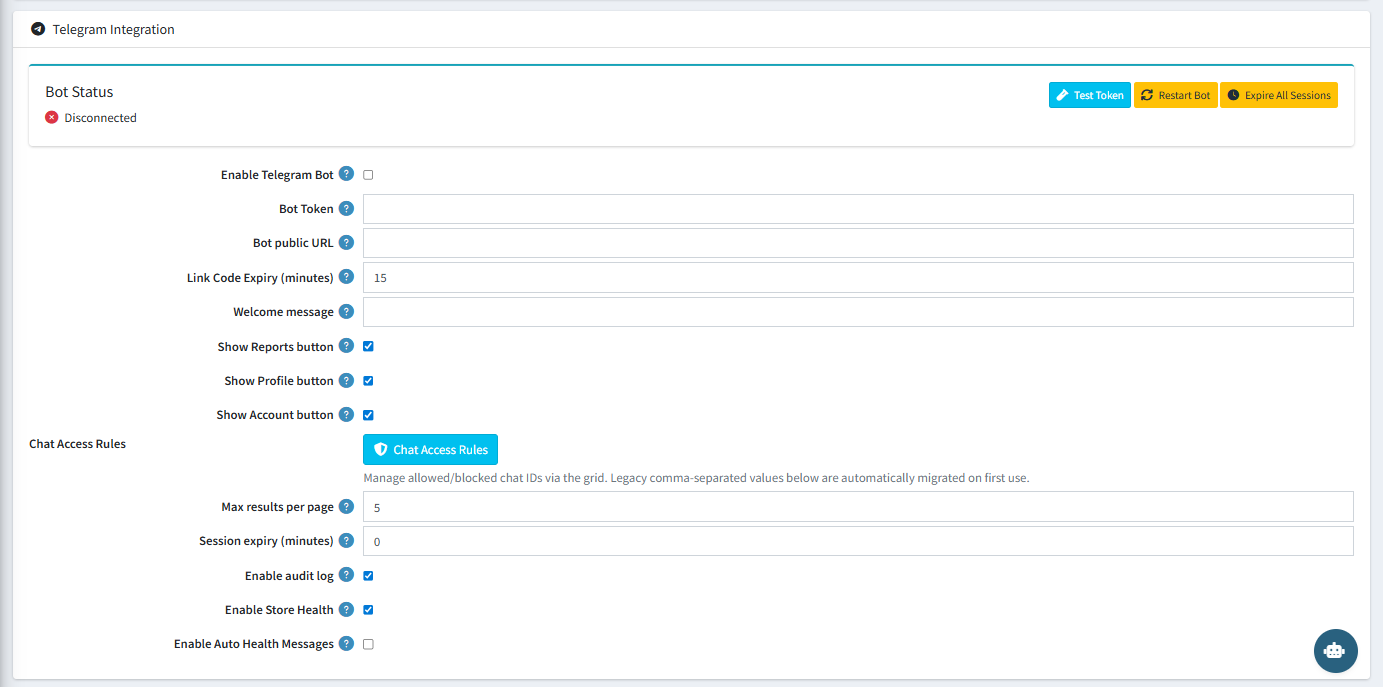
Bot Status
The Bot Status panel at the top of the section shows whether the bot is currently connected or disconnected. Three utility buttons are available:
| Button | Action |
|---|---|
| Test Token | Verifies that the entered Bot Token is valid and can connect to Telegram. |
| Restart Bot | Restarts the Telegram bot connection without restarting nopCommerce. |
| Expire All Sessions | Immediately invalidates all active Telegram user sessions. |
Configuration Settings
| Setting | Description |
|---|---|
| Enable Telegram Bot | Checked (ON) — Activates the Telegram bot. |
| Bot Token | Your Telegram bot token from @BotFather. Required to connect. |
| Bot Public URL | The public HTTPS URL of your nopCommerce store. Required for webhook delivery. |
| Link Code Expiry (minutes) | 15 — The one-time login code sent to Telegram expires after this many minutes. |
| Welcome Message | Custom text sent to a user when they start a conversation with the bot. |
| Show Reports Button | Checked (ON) — Shows a Reports shortcut button in the Telegram menu. |
| Show Profile Button | Checked (ON) — Shows a Profile shortcut button in the Telegram menu. |
| Show Account Button | Checked (ON) — Shows an Account shortcut button in the Telegram menu. |
| Chat Access Rules | Opens the Chat Access Rules management grid for allowlist/blocklist control. |
| Max Results Per Page | 5 — The number of results shown per page in Telegram list responses. |
| Session Expiry (minutes) | 0 — Set to 0 for sessions that never expire, or enter a value to auto-logout idle users. |
| Enable Audit Log | Checked (ON) — Logs all bot activity to the Bot Activity Log. |
| Enable Store Health | Checked (ON) — Enables store health monitoring and reporting via Telegram. |
| Enable Auto Health Messages | When enabled, automatically sends health alert messages to Telegram when issues are detected. |
How to Link Your Telegram Account
- Enable the Telegram Bot and enter your Bot Token and Bot Public URL, then save.
- Open your Telegram app and search for your bot by its username.
- Send
/loginto the bot. - The bot will reply with a one-time link code.
- Enter that code in the Telegram Login page in the admin panel to link your account.
Telegram Bot Commands
| Command | Description |
|---|---|
/start |
Start a conversation with the bot |
/login |
Generate a one-time link code to authenticate |
/logout |
Log out of the current session |
/status |
Check store and bot status |
/health |
Get an instant store health report |
/reports |
Access available reports |
/help |
Show available commands |