Configuration
This guide explains how to configure the Popup Engage plugin to get the best results for your store.
Multi-Store Configuration
- If you run multiple stores, select the specific store you want to configure from the dropdown list at the top of the configuration page.

Home Page Popup Settings
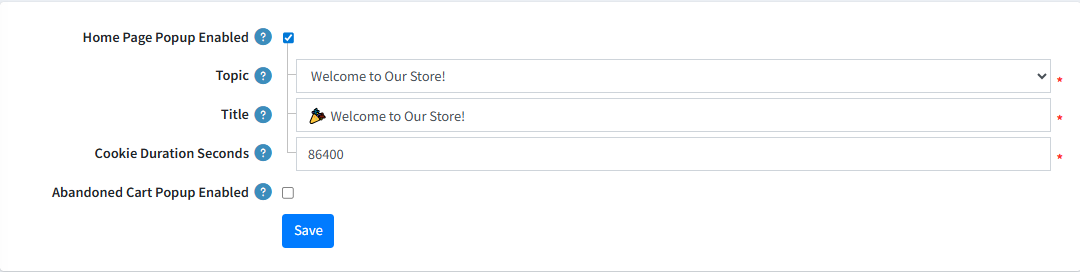
These settings control the popup that appears when a customer visits your site's Home page.
-
Home Page Popup Enabled : Enable this option to display the popup on the Home page.
-
Topic : Select a standard nopCommerce Topic from the dropdown. The selected topic content (text, images, or HTML) will be displayed inside the popup.
-
Title : Enter the heading text shown at the top of the popup. (e.g., “Welcome!” or “Special Offer”).
-
Cookie Duration (Seconds): Defines how long the popup remains hidden after a user sees it, helping avoid overexposure:
- 0 = Shows every time the page loads
- 86400 = Shows once per day (24 hours)
- 2592000 = Shows once per month (30 days)
Abandoned Cart Popup Settings
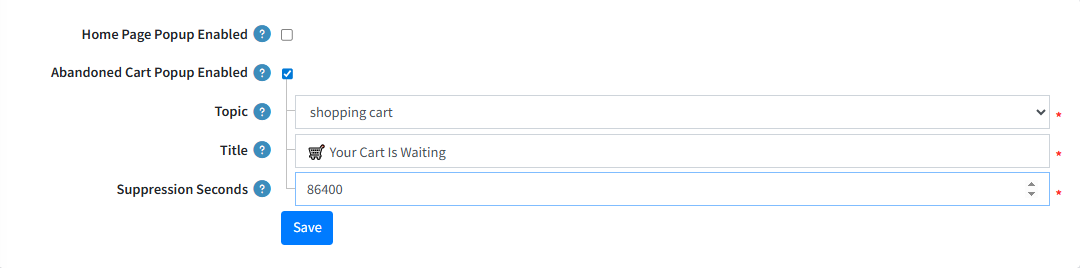
These settings control the Exit-Intent (Abandoned Cart) popup, which appears when a customer tries to leave the site with items still in their cart.
-
Abandoned Cart Popup Enabled : Enable this option to activate the exit-intent popup.
-
Topic : Select the topic whose content will be displayed inside the abandoned cart popup.
-
Title : Enter the heading text for the popup (e.g., “Item left in your cart”).
-
Suppression Seconds : Set how long the popup should stay hidden after it appears once. This prevents it from showing repeatedly within a short time.
-
Smart Behavior
- Guest Users: The popup includes an email subscription field to collect leads.
- Logged-in Users: The email field is hidden, and only the offer or message is shown.
Saving Your Changes
- After making your changes, click Save to apply them immediately.