Configuration
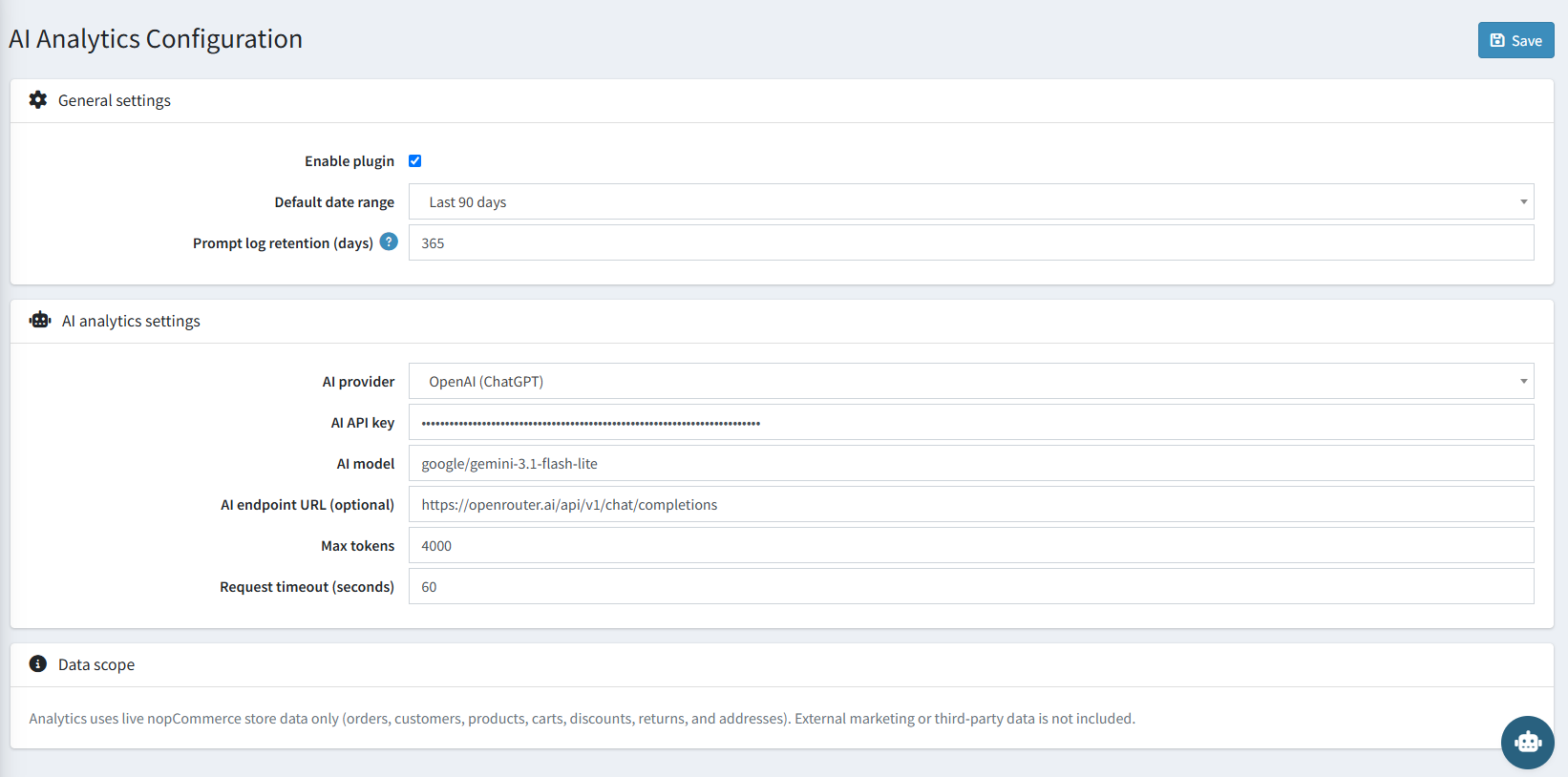
The Configuration screen is accessible from AI Analytics → Configuration in the admin sidebar, or via Configure on the Local Plugins page. All plugin setup, licensing, and AI provider settings are managed here.
License & Activation
| Setting | Description |
|---|---|
| License Key | Enter the license key received on your registered email after purchase. |
| License Status | Displays the current activation status of the plugin. |
A dedicated admin permission controls who can view and edit this screen, keeping license and API key details restricted to authorized staff.
General Settings
| Setting | Description |
|---|---|
| Enable plugin | Enables or disables the entire nopCommerce AI Analytics plugin. Uncheck to hide it from the admin sidebar without uninstalling it. |
| Default date range | The date range pre-selected when the Analytics Dashboard first loads (e.g. Last 90 days). |
| Prompt log retention (days) | Number of days AI Analytics Workspace prompt logs are kept before automatic cleanup. Default: 365. |
AI Analytics Settings
| Setting | Description |
|---|---|
| AI provider | Select your AI service provider. Options: OpenAI (ChatGPT), Anthropic (Claude), OpenRouter (Multi-model), Azure OpenAI, Custom / Self-hosted. |
| AI API key | Your secret API key from the selected provider. Leave blank to keep the existing saved key. |
| AI model | The model identifier to use. Example: google/gemini-3.1-flash-lite. |
| AI endpoint URL (optional) | Required only for Azure OpenAI or Custom / Self-hosted models. Example: https://openrouter.ai/api/v1/chat/completions. Leave blank for all other providers — endpoints are resolved automatically. |
| Max tokens | Maximum number of tokens the AI may return per response. Default: 4000. |
| Request timeout (seconds) | HTTP timeout for AI provider calls in seconds. Default: 60. |
Provider Quick Reference
| Provider | Example Models | Notes |
|---|---|---|
| OpenAI (ChatGPT) | gpt-4o, gpt-4o-mini, gpt-4-turbo |
Standard OpenAI API key |
| Anthropic | claude-sonnet-4-6, claude-opus-4-6 |
Anthropic API key |
| OpenRouter | google/gemini-3.1-flash-lite, meta-llama/llama-3.3-70b-instruct, mistralai/mistral-7b-instruct |
API key starts with sk-or-v1- |
| Azure OpenAI | Your deployment name | Requires AI endpoint URL |
| Custom | Any OpenAI-compatible model | Requires AI endpoint URL |
How to Get Your API Key (OpenRouter)
- Go to https://openrouter.ai and create a free account.
- Navigate to API Keys in your account settings.
- Generate a new key — it will start with
sk-or-v1-. - Paste it into the AI API key field and set AI provider to OpenRouter (Multi-model).
Data Scope
Analytics uses live nopCommerce store data only (orders, customers, products, carts, discounts, returns, and addresses). External marketing or third-party data is not included.
This is a fixed platform boundary, not a toggle: the plugin only ever reads standard nopCommerce entities (Orders, Order Items, Customers, Products, Categories, Shopping Carts, Discounts, Returns, and Address/Region data). It never connects to external marketing platforms, website analytics tools, email campaign systems, CRMs, POS, or ERP systems.
Saving Settings
Click the Save button in the top-right corner of the page. A success notification will confirm the settings were saved.